How do I make subtitles easy to read?
Roughly half your audience watches on mute, so your subtitles are the video for them. Five things decide whether they can actually read it: size, contrast, position, line length and timing. Here is how to get all five right.
By Thomas, founder of CutScore · Published · Updated
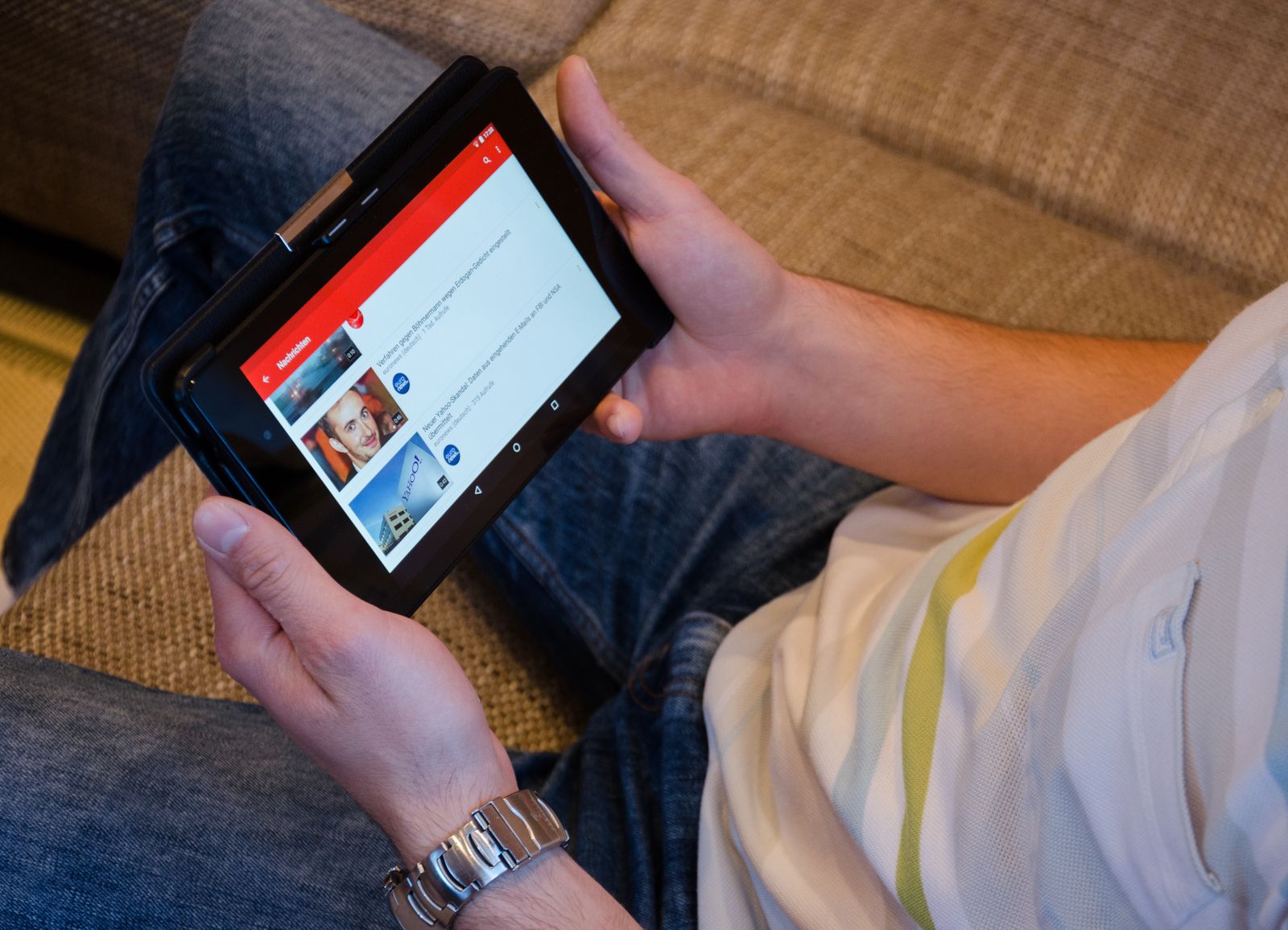
Most videos are watched with the sound off, at least to begin with. People scroll a feed on a train, in an open-plan office, next to a sleeping baby, and they decide whether to stay before they decide whether to unmute. For those few seconds, your subtitles are not an accessibility extra. They are the soundtrack. If they are hard to read, the viewer does not work harder. They scroll.
I have shipped my own share of unreadable captions. Thin grey text over a bright window. A clever font that looked great in the editor and turned to mush the moment the platform re-compressed it. Two long lines that ran straight under the TikTok handle so the last word was permanently hidden. Each one looked fine on my big monitor at full brightness. None of them survived contact with a real phone.
Here is the thing nobody tells you: readable subtitles are mostly engineering, not taste. Size, contrast, position, line length and timing all have rough targets you can hit. Get them right and your text just works, on a cracked Android in sunlight as much as on your Retina display. Get them wrong and even good writing disappears. Let us go through all five.
The five things that decide if subtitles are readable.
Each one has a target you can actually check. Hit all five and your text reads cleanly on the smallest, dimmest, busiest screen your viewer owns.
| Rule | Target to hit | What it costs you if you skip it |
|---|---|---|
| Size | 5–8% of height | Too small and a phone viewer cannot read it without zooming, so they leave. |
| Contrast | box or heavy outline | Plain white text vanishes over snow, sky, a white wall or a bright shirt. |
| Position | inside the safe zone | Text under the UI gets covered by the handle, caption bar and buttons. |
| Line length | 1–2 short lines | Long, dense blocks force a viewer to read instead of watch, and they stop. |
| Timing | readable, not flashed | Lines that flash by faster than people read leave them feeling lost. |
| Font | bold sans-serif | Thin or decorative fonts crumble after the platform re-encodes the file. |
CutScore measures caption size, contrast and safe-zone position frame by frame, then tells you exactly which lines fail and when. No squinting at a phone required.
How to nail each of the five.
1. Size: bigger than feels right in the editor
The most common mistake is text that looks fine on your monitor and tiny on a phone. A safe target is a cap height of roughly 5 to 8 percent of the frame height. On a 1080p frame that is somewhere around 54 to 86 pixels tall for the capital letters. When in doubt, go bigger. I have never once heard a viewer complain that the subtitles were too easy to read. This sizing rule sits inside what we analyze, because for a muted viewer the text genuinely is the video.
2. Contrast: never trust plain white text
Plain white captions look crisp right up until your footage turns bright. Then they disappear over a window, a pale wall, snow, a white shirt. The fix is to stop relying on the text colour alone. Put a semi-opaque black box behind the words, or give the letters a thick black outline (and a subtle drop shadow if you want belt and braces). White-on-black-box and bold yellow-on-black are the two most legible combinations going, which is exactly why broadcasters have used them for decades. If you want to verify it properly, here is how to check text contrast in a video.

3. Position: keep text out of the platform's furniture
On vertical video, the bottom of the frame is a warzone. TikTok, Reels and Shorts all stack a caption, a username, a row of buttons and a progress bar across the lower portion of the screen. Park your subtitles there and the app will cheerfully draw its own interface straight over your last word. Keep your text inside the safe zone, which on a 9:16 frame usually means lifting it into the lower-middle rather than the very bottom. On 16:9 YouTube the classic lower third is still fine. If you want the exact margins, here is where to place text so it is not cut off.
4. Line length: one or two short lines, never a paragraph
Reading is work, and a wall of text on a moving image is a lot of work. Keep each caption to one or two lines, and keep each line short, somewhere around 32 to 42 characters is a comfortable ceiling. Break lines where the sentence naturally breathes, not in the middle of a phrase. If your captions are auto-generated as one endless run of words, that is a fast way to lose people. The aim is glanceable: a viewer should absorb a line in a beat and get back to watching.
5. Timing: leave it on long enough to actually read
A line that flashes by before anyone can finish it is worse than no caption at all, because now the viewer feels like they missed something. As a rough guide, keep a caption on screen for at least a second, and longer for a full two-line block. Most people read comfortably at around 15 characters per second, so size your timing to that, not to how fast you can read your own words. If your captions are perfectly synced to your speech but you talk quickly, slow the captions down a touch and let them lag the audio rather than race it.
Here is a real CutScore report for an everyday vertical video: caption size, contrast and safe-zone position scored, with the exact timestamps where text fails.
If you only fix three things.
Most of the jump from "I can barely read this" to "clean and effortless" comes from these three. Fix them first.
By eye, by overlay, or in one pass.
On a real phone
Free and surprisingly effective. Send the export to your phone, hold it at arm's length, mute it, and read along. The catch is the same one that fools everyone: your big bright monitor lies, and you already know what the captions say, so leave it a day or hand it to someone else.
With safe-zone overlays
More precise. Drop a safe-zone guide over your timeline and check every caption sits inside it. Pair that with a contrast eye and a character counter and you can catch most problems. The cost is doing it manually, on every line, on every video.
With a coach in one pass
Hand the file (or a link) to CutScore. It measures caption size, contrast and safe-zone position across the whole video, flags the exact lines that fail and when, and folds it into a 0 to 100 craft score. See a sample report.
Frequently asked.
Stop publishing captions nobody can read.
CutScore checks your caption size, contrast and position for every line and tells you exactly what to fix, with the timestamps to prove it. Join the waitlist for early access.
You’re on the list.
We’ve noted your email. You’re in line for priority access and a free report when early access opens.