How do I improve my course and e-learning videos?
Students sit with your lesson for a long time, so the things that wear them out are sound, readable text and pacing, not camera megapixels. Here is what actually moves the needle, and how to check it before a module goes live.
By Thomas, founder of CutScore · Published · Updated

A course video is not a thirty-second hook. Nobody watches a lesson for the vibes. They are here to learn a thing, and they will sit with you for ten, twenty, sometimes sixty minutes to get it. That changes the rules. Small problems you would never notice in a Short become genuinely exhausting over an hour. A faint hiss, a voice that creeps up and down in volume between clips, code you have to squint at: none of it is fatal once, and all of it is brutal repeated for the length of a module.
I have made e-learning videos that I was proud of and that students quietly bailed on, and it took me far too long to admit why. The teaching was fine. The experience of watching it was tiring. The audio wandered, the screen text was too small on a laptop, and a five-minute setup that bored me to record bored them twice as much to watch. None of that showed up when I previewed thirty seconds on my big monitor at full brightness with good headphones.
So the goal here is not "make it cinematic." The goal is make it easy to sit through and easy to read, module after module, on whatever device the student happens to be holding. That comes down to four things, and they are not the four most beginners worry about.
What actually improves a course video.
Ranked by how much your students feel them. Fix from the top down, because the first two carry most of the perceived quality of any lesson.
| Fix | Target to hit | What it costs you if you skip it |
|---|---|---|
| Voice loudness | ≈ −14 LUFS | Quiet, timid audio over an hour is exhausting and reads as low effort. |
| Loudness consistency | same across modules | Riding the volume between lessons makes students reach for the dial. |
| True peak | ≤ −1 dBTP | Hot peaks crackle on cheap laptop speakers, which is most of your class. |
| Background noise | low, steady | Hiss and room hum become unbearable over a long, focused watch. |
| On-screen text + code | large, high-contrast | Tiny code is the number one complaint on coding and software courses. |
| Captions + safe zones | readable, in-frame | Around half watch on mute, and many are non-native speakers. |
| Exposure + white balance | even, neutral | A dark or colour-cast talking head looks unfinished beside clean slides. |
| Pacing · dead air | trim the gaps | Real-time demos and silent clicking are where students quit a good lesson. |
| Export bitrate | high enough for text | Low bitrate smears slides and code into mush after the platform re-encodes. |
A course is twenty videos, not one. Drift in loudness or text size across a dozen modules is the part that is impossible to catch by ear. CutScore checks each lesson against the same standard and flags the ones that fell off.
Four passes, in order of impact.
1. Sound: the thing that decides whether they finish
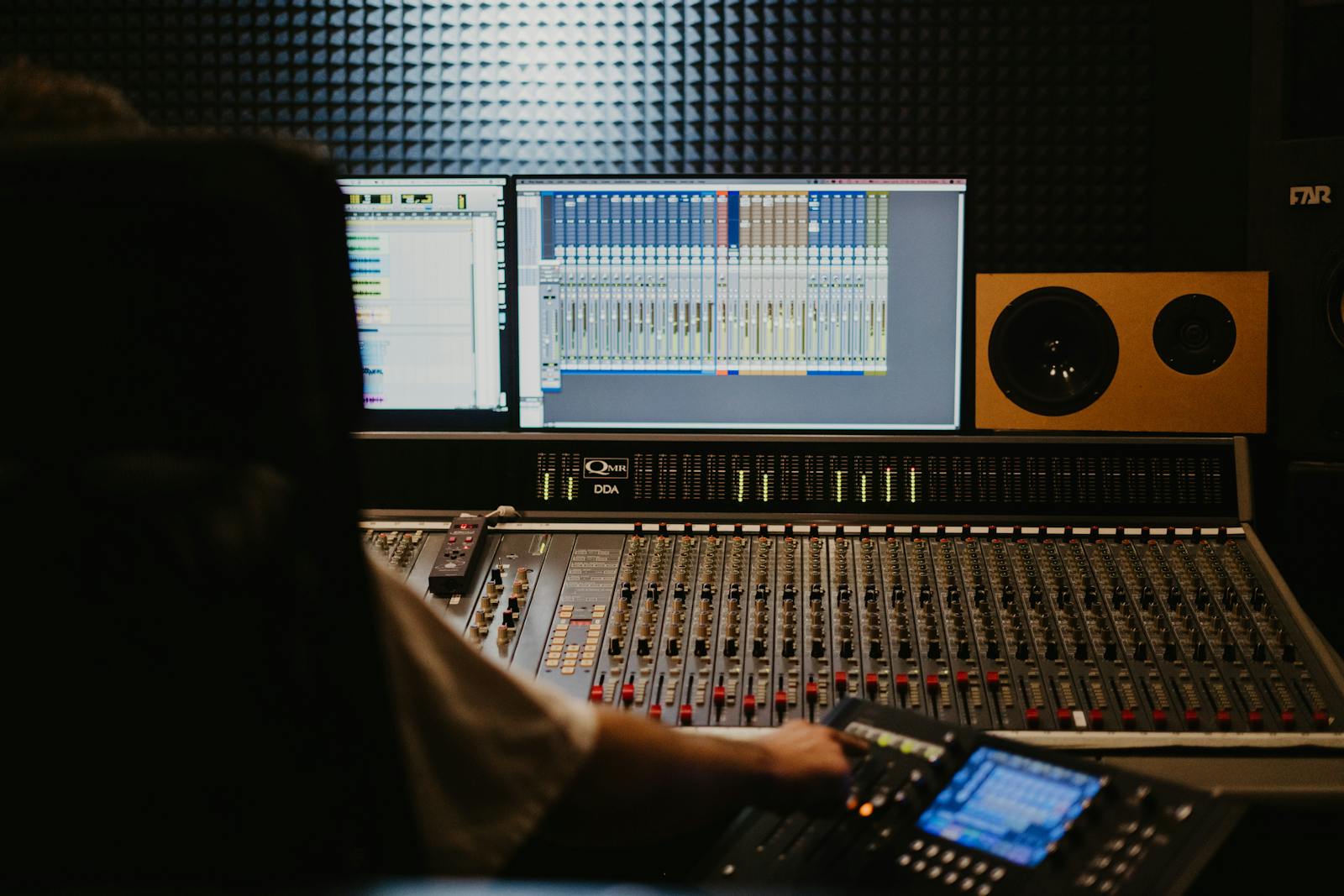
Over a long lesson, audio is everything. Get the voice sitting near −14 LUFS so it is comfortable without the student reaching for the volume, and keep true peak at or below −1 dBTP so nothing crackles on laptop speakers. Then chase the two things that wreck a course specifically: consistency and noise. Module one and module twelve should be the same loudness, recorded weeks apart or not. A faint hiss you can ignore for thirty seconds becomes torture across an hour, so clean it up. If your music bed is louder than your voice during a demo, you have already lost half the room.
2. On-screen text and code: make it readable on a phone
This is where course videos quietly fail, especially software and coding lessons. You record at a comfortable size on a 27-inch monitor, then a student opens it on a phone and the code is a grey smudge. The fix is unglamorous: bump up the font in your editor, your terminal and your slides before you record, not after. Zoom into the part you are talking about. Keep captions and key text inside the platform safe zone so the interface does not eat them. The test is simple, and I do it on every lesson now: play it on your phone at arm's length. If you squint, your students are squinting harder.
3. Picture: light the face, neutralise the colour
Your talking-head insert does not need to be cinematic, but it should not look like a hostage video next to a crisp slide deck. Get even light on your face, no harsh shadow on one side, and make sure your white balance is neutral so you are not faintly orange or blue. A clean, well-lit webcam reads as professional. A dark, colour-cast one reads as "recorded in a hurry," and it drags down the slides sitting right next to it. This whole family of image checks is part of what we analyze, because the picture is the first thing a student reads before you have said a word.
4. Pacing and export: respect the student's time, then test it
A good lesson delivered slowly still loses people. Watch your own video and be honest about the dead air: the silent clicking, the "let me just find that," the demo running in real time when a cut would do. Trim it. Speed up routine setup. A few well-placed jump cuts remove the slog without reshooting anything, and counting your filler words will tell you whether the delivery is tightening or wandering. Then the boring last step: export at a bitrate high enough that small text survives compression, upload, and watch the published version on a phone. If the code went soft, your export settings are the suspect, not your screen recorder.
Here is a real CutScore coaching report: loudness, on-screen text, pacing and export, all scored, with timestamps and the exact fixes for the lesson.
If you only fix three things.
Most of the jump from "homemade lesson" to "this instructor knows what they are doing" comes from these three. Fix them across the whole course, not just the intro.
By eye, by meter, or in one pass.
By eye and ear
Free, and a real start. Watch the whole lesson on a phone with cheap earbuds, not your studio setup. The catch over a long course: your ear adapts to your own voice, and you cannot reliably feel a two-decibel drift between module three and module nine. Best used on yesterday's recording, not today's.
With scopes and meters
Accurate and honest. A loudness meter on every export, a scope for exposure, a hard look at text size. The cost is time: you have to run them on each module of a long course and read them correctly every single time. Great if you like the process. Across twenty lessons, most instructors quietly stop.
With a coach in one pass
Hand each lesson (or a link) to CutScore. It measures loudness, consistency, on-screen text, pacing and export against the same standard for every module, then gives you a 0 to 100 score with timestamped evidence and the fixes. See a sample report.
Frequently asked.
Make every module as clean as the first.
CutScore checks each lesson against the same standard and tells you exactly what to fix, with the evidence to back it up. Join the waitlist for early access.
You’re on the list.
We’ve noted your email. You’re in line for priority access and a free report when early access opens.