What frame rate should I use for my video?
24, 30 or 60 fps? The honest answer is shorter than you think, and most "choppy video" problems are not about the number you pick but about keeping it consistent. Here is how to choose, and what quietly goes wrong.
By Thomas, founder of CutScore · Published · Updated

Most people ask "what frame rate should I use" expecting one magic number, and there isn't one. Frame rate is a creative choice that happens to wear a technical costume. 24 fps and 60 fps are not "better" or "worse" than each other. They feel different. One reads as cinema, the other as a window. Picking the wrong one for your video is not a quality bug, it is a tone mismatch, and viewers feel it even when they can't name it.
The real trouble starts after you've chosen. I have shipped videos that looked perfectly smooth on my timeline and arrived on YouTube with a faint stutter every time the camera panned. The cause was never the frame rate I picked. It was that one clip was 24 fps, the project was 30 fps, my drone added 60 fps B-roll, and the software quietly stretched and squeezed frames to make them all fit. That stretching is what your eye reads as judder.
So this guide is two questions, not one. Which frame rate fits the feel you want, and how do you stop it from breaking between your camera and the upload. Get the first right and your video has the correct mood. Get the second right and it stays smooth. Skip either and people sense something is off.
Which frame rate should you use?
Match the frame rate to the feeling you want, not to the biggest number your camera offers. Here is what each common option is actually for.
| Frame rate | Best for | What it feels like |
|---|---|---|
| 24 fps | Vlogs, storytelling, cinematic B-roll, short film | Filmic and dreamy. The frame rate cinema has used for a century. |
| 25 fps | Same as 24, in PAL regions (Europe, much of Asia) | Practically identical to 24, picked to play nicely with 50 Hz power. |
| 30 fps | Talking heads, tutorials, most social, news, interviews | Smooth and neutral. The safe default that never looks wrong. |
| 60 fps | Gameplay, sport, action, anything you will slow down | Crisp and hyper-real. Great for motion, can feel too "live" for drama. |
| 120 fps+ | Dedicated slow motion you will play back slower | Not a delivery format. You shoot it to retime it down later. |
Frame rate mismatches and judder are exactly the kind of thing your eye stops noticing after the tenth viewing. CutScore reads the cadence of every clip and flags the ones that don't match, with timestamps.
Getting the frame rate right, in order.
1. Pick the frame rate before you shoot, not after
Frame rate is a capture decision first. You can convert in the edit, but software has to invent or discard frames to do it, and that is where smooth motion goes to die. Decide the look up front: 24 for filmic, 30 for clean and neutral, 60 if there is fast motion or you want the option to slow it down. Set the camera, then leave it alone for the whole shoot. Changing frame rate mid-project is how you end up with a timeline full of clips that refuse to agree with each other.
2. Match your shutter speed to your frame rate
This is the part most people miss, and it matters more than the frame rate number itself. The rough rule: set your shutter speed to about double your frame rate. Shooting 24 fps? Use a shutter near 1/50. Shooting 30 fps? Around 1/60. Shooting 60 fps? Around 1/120. This gives you the natural motion blur your eye expects. Shoot with a shutter that is way too fast (say 1/1000 for a 30 fps clip) and every frame is razor sharp, which sounds good but actually makes motion look stuttery and weirdly robotic. Too slow and everything smears.
3. Set your project frame rate to match your footage
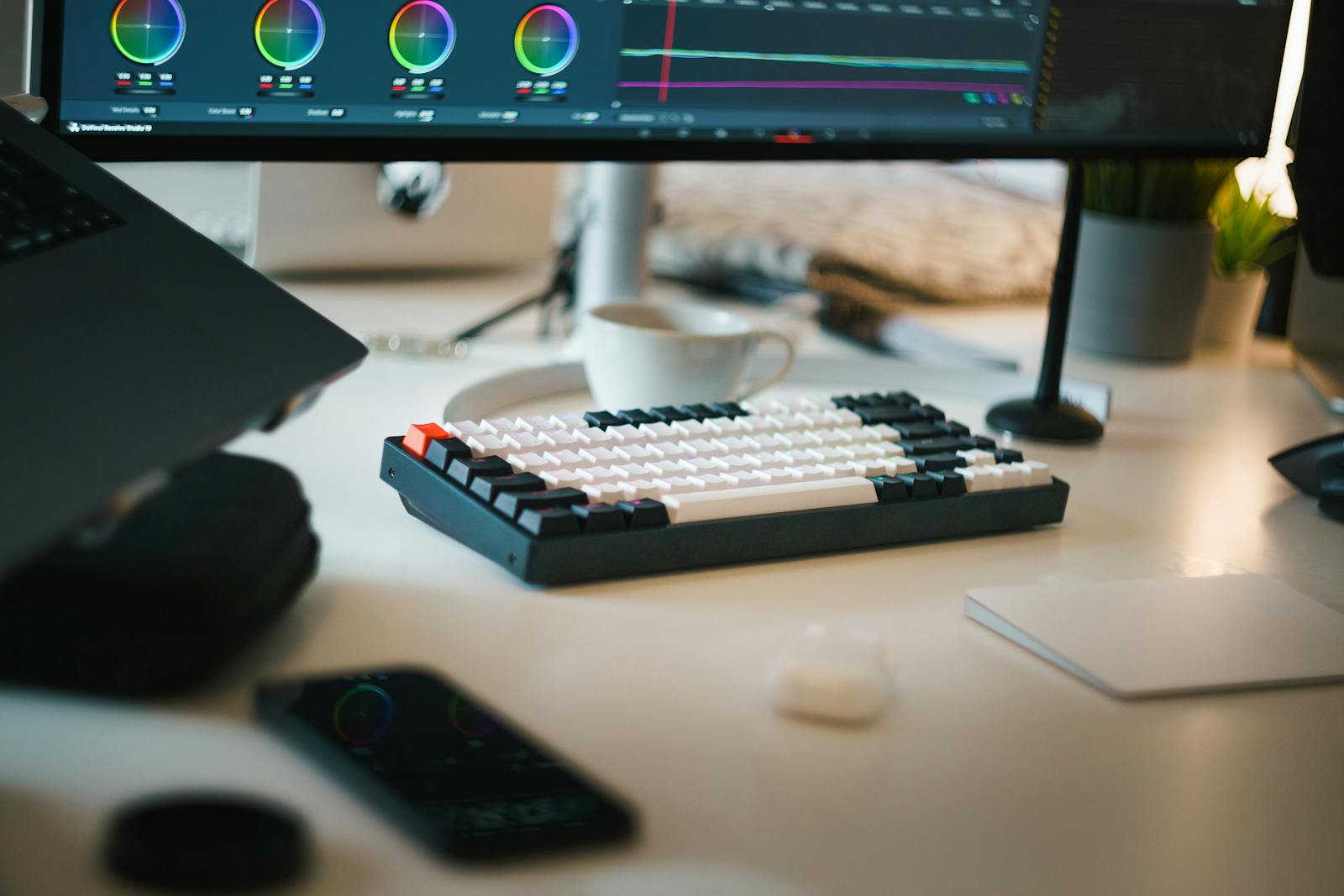
When you start a new project, the timeline has its own frame rate, and it should match what you shot. Shot everything at 30 fps? Make the sequence 30 fps. Drop a 24 fps clip onto a 30 fps timeline and the software has to fit 24 frames into 30 frames of space, so it repeats some frames and you get that uneven, hitching motion on every pan. Mixing frame rates on purpose is fine for experienced editors who know how to retime, but if you are asking which frame rate to use, the safest path is simple: one frame rate, everywhere, from camera to sequence to export. Consistency is part of what we analyze, because it is invisible until it isn't.
4. Export at the same frame rate you edited
The last trap is the export window. If your project is 30 fps, export at 30 fps. Don't let a preset quietly push you to 60, or "match source" pull a number you didn't expect. YouTube, TikTok and Reels all accept 24, 25, 30 and 60 fps without complaint, so there is no platform reason to convert. Keep the chain unbroken and the motion you saw in your edit is the motion your viewer gets. If your video looks fine on your machine but stutters after upload, frame rate and your export settings are the first two suspects, not your camera.
Here is a real CutScore report on an everyday video: motion cadence, export settings, loudness and the rest, scored, with timestamps and the exact fixes.
What frame rate do I need for slow motion?
Slow motion is the one place a high frame rate earns its keep. The trick is the gap between how fast you capture and how slowly you play it back.
Why does my video look choppy?
Mixed frame rates
The most common culprit. One 24 fps clip on a 30 fps timeline, or phone footage at 30 mixed with drone footage at 60. The software stretches frames to fit and your eye reads the result as judder, usually worst on pans and movement. Fix: one frame rate everywhere.
Wrong shutter speed
A shutter far faster than double your frame rate freezes every frame, killing the natural blur that makes motion read as smooth. Footage looks crisp on a still and stuttery in motion. Fix: set shutter to roughly twice your frame rate (around 1/60 at 30 fps).
Export or upload mismatch
Editing at 30 and exporting at 60, or a low bitrate that compression mangles, can both add stutter after upload. If it only judders on the published version, the cause is downstream of your edit. See why video looks worse after upload.
Frequently asked.
Stop guessing before you publish.
CutScore checks your frame rate, cadence, export settings and the rest, then tells you exactly what to fix, with the evidence to back it up. Join the waitlist for early access.
You’re on the list.
We’ve noted your email. You’re in line for priority access and a free report when early access opens.